

How to Use Google Forms as a Database: A Simple Guide for Beginners
February 10, 2025
Author : Israfil Hossain
When building a quick prototype, collecting feedback, or managing basic data without setting up a backend, Google Forms can be a surprisingly powerful tool. With the help of Google Sheets, you can turn a form into a lightweight database alternative.
In this article, we’ll explore how to use Google Forms as a database, its advantages, limitations, and how to connect it to your apps.
📌 Why Use Google Forms as a Database?
Google Forms is user-friendly, free, and integrates seamlessly with Google Sheets. For many small-scale use cases, it can replace a traditional database, especially when you need:
- Quick data collection (e.g., surveys, contact forms, feedback)
- No backend infrastructure
- Real-time access to responses
- Easy sharing and collaboration
🛠️ How It Works
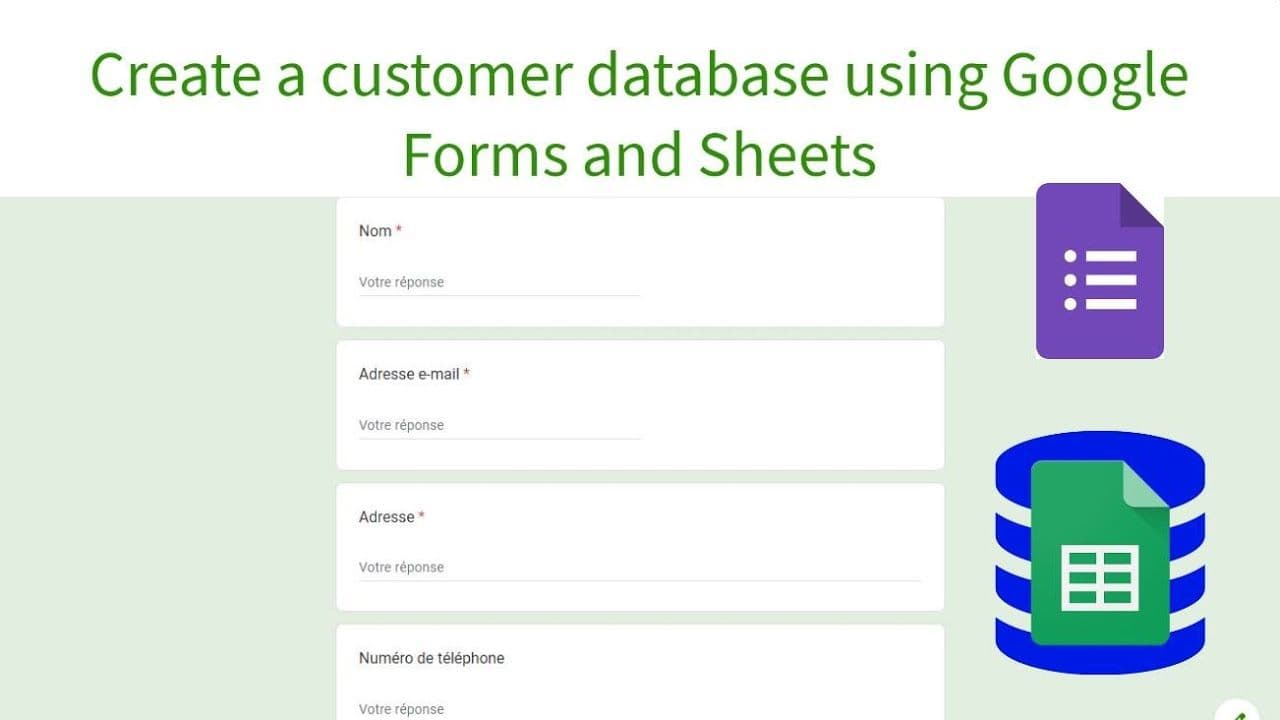
Create a Google Form
- Go to Google Forms
- Click on the blank form or use a template
- Add your fields (name, email, message, etc.)
Link the Form to Google Sheets
- In the form editor, click "Responses" → "Link to Sheets"
- This creates a spreadsheet where every form submission is stored as a new row
Use Google Sheets as the Database
- Now, the spreadsheet acts like a database:
- Rows = Records
- Columns = Fields
Connect Your App
There are several ways to connect Google Sheets (the "database") to your frontend or app:
- Google Apps Script: Write custom APIs using Apps Script
- No-code Tools: Tools like Zapier, Pabbly, or Glide connect Google Sheets to apps
- API Wrappers: Use tools like SheetDB, Sheet.best, or GSX2JSON to treat your sheet like a REST API
- Direct Fetch via Google Apps Script Web App:
javascriptCopyEditfunction doGet() { const sheet = SpreadsheetApp.openById("YOUR_SHEET_ID").getSheetByName("Sheet1"); const data = sheet.getDataRange().getValues(); return ContentService.createTextOutput(JSON.stringify(data)).setMimeType(ContentService.MimeType.JSON); }
✅ Advantages
- Free: No need for paid hosting or database setup
- Fast setup: Create and deploy in minutes
- Real-time updates: New responses show up instantly in Sheets
- Accessible: Easily shared via link or embedded in websites
❌ Limitations
- No relational data: It's flat — not good for complex data structures
- Concurrency issues: Not built for high traffic or multi-user write conditions
- Limited querying: No native support for filtering, joining, or querying like SQL
- Security: You need to manually handle permissions and public access
🔐 Security Tips
- Do not expose your sheet with edit access
- Use Google Apps Script to control access and sanitize inputs
- Always restrict API endpoints or use OAuth if sensitive data is involved
💡 When Should You Use Google Forms as a Database?
✅ Use For❌ Avoid ForFeedback formsHigh-frequency transactionsSimple contact formsApplications with complex queriesPrototyping internal toolsSensitive or private dataSmall event registrationsScalable web apps
🚀 Final Thoughts
Google Forms, paired with Google Sheets, can serve as a quick and lightweight database for simple apps, prototypes, or internal tools. While it’s not a replacement for real databases like Firebase, MongoDB, or PostgreSQL, it’s an excellent starting point — especially when time and resources are limited.